
How Jorna works
This guide explains how Jorna works step by step, from installing it on your phone to giving other people access and choosing their permissions. The screenshots show the phone view with test data (Granja Demo).
What Jorna is
Jorna is an app for keeping the books of a farm operation: work hours, production, sales, expenses, worker payments, partner investments and withdrawals, and inventory. From that it calculates the available cash, the profit, what each worker is owed and each partner’s balance. It works on phones and computers, and also offline.
Everything is organized by operation. Each operation has its own areas, products, workers, partners, balances and people with access. One account can have several operations, its own or shared by other people.
Installing the app
Jorna is not downloaded from an app store: you open it in the browser and install it on your home screen. It then looks and works like a regular app, with its own icon, and keeps what it needs to work without signal.
- iPhone: open the Jorna link in Safari, tap the Share button (the square with the up arrow) and choose “Add to Home Screen”.
- Android: open the link in Chrome, tap the three-dot menu and choose “Install app” or “Add to Home screen”.
- Computer: open the link in Chrome or Edge and click the install icon on the right side of the address bar, or just use it in the browser.
Signing up and signing in
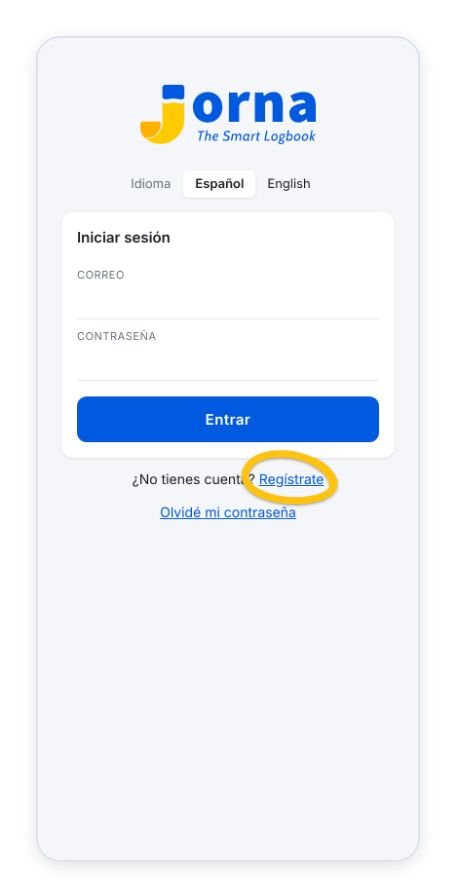
The first time you open Jorna, tap “Regístrate” (sign up) and enter your name, email and password. After that you sign in with that email and password. If you forget it, “Olvidé mi contraseña” sends you a link to reset it. At the top you can pick the language (Español or English); the app remembers your choice.
If someone already gave you access to their operation using your email, sign up with that same email so the access turns on automatically.
Creating your first operation
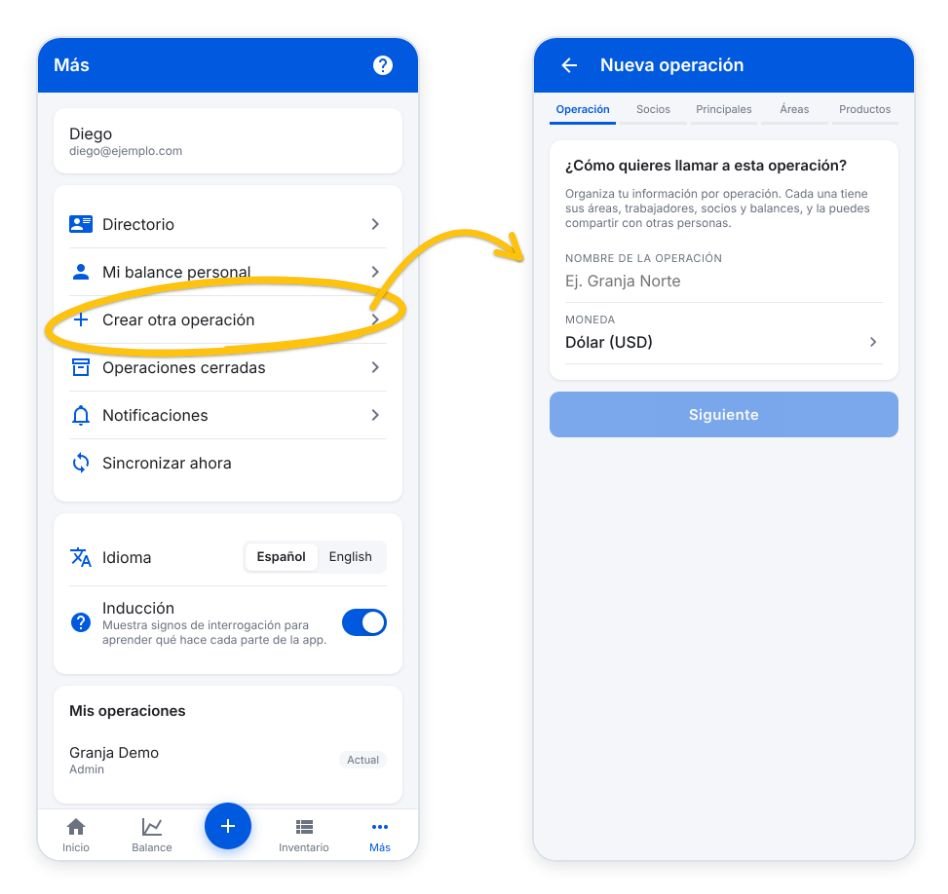
If your account has no operations yet, Jorna opens the new operation wizard. You can also open it from More → Crear otra operación. Move through these steps with “Siguiente” (Next); you can skip what you don’t have yet and fill it in later:
- Operation: the name and currency (for example dollars or pesos).
- Partners: who owns it and with what percentage. You are a 100% partner until you add others.
- Main workers: the workers in charge of an area, paid a salary or a commission on what their area sells.
- Areas: greenhouses, fields or spaces, with their type (Indoor, Outdoor or Mixed) and size.
- Products: what you grow or sell, with its unit (pounds, kilos, pieces, etc.).
Home

At the top is the operations carousel. Swipe sideways to switch operations; each card shows the available cash and this month’s hours and production. At the end of the carousel is “Crear nueva operación” (create new operation), and on that card nothing from the previous operation is shown.
Below are the Quick actions, the buttons for recording entries. Use the pencil to choose which ones appear. If something still needs setting up (areas, products or workers), a notice takes you straight to the form to add it. You also see pending seller sales and the list of areas with their inventory; the note icon on each area lets you write a quick note in its log.
The bottom menu has Home, Balance, the + button to add an entry, Inventory and More. In the blue bar, the people icon opens Team, the gear opens Settings and the question mark turns on the help.
Worker view
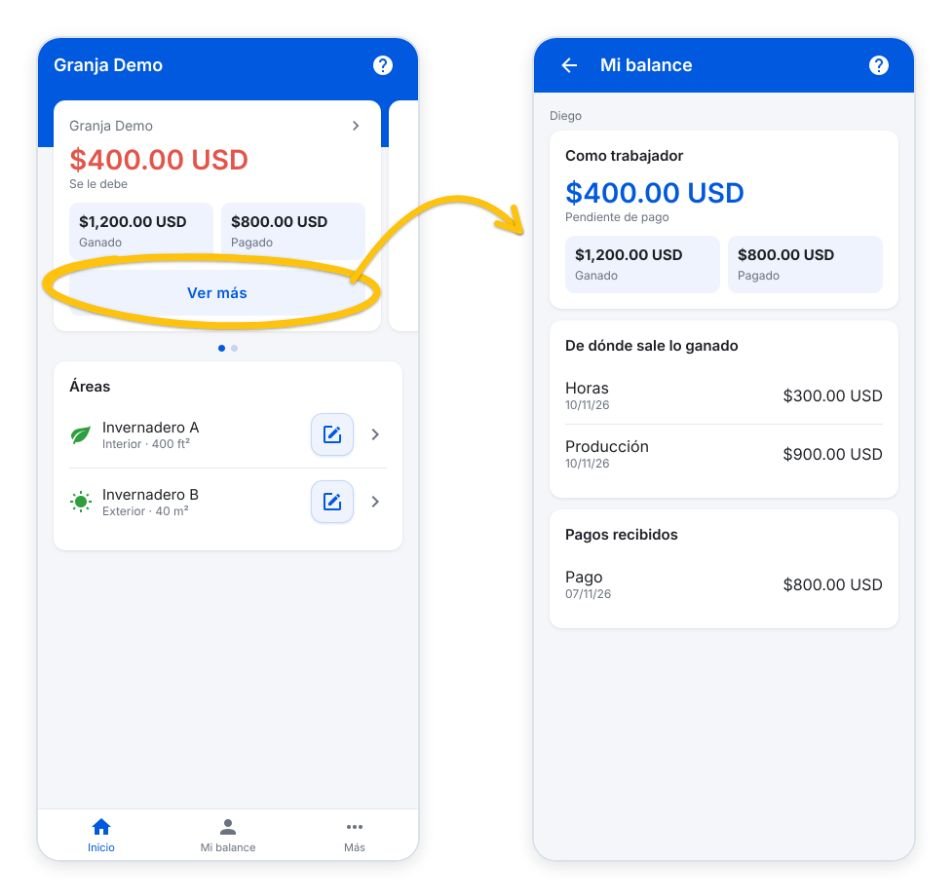
Someone who joins an operation only as a worker sees a different Home. On that operation’s card, instead of the available cash, they see what they are owed, with what they have earned and what they have been paid. “Ver más” (see more) opens their personal balance with the detail of earnings and payments. They don’t see quick actions or the + button because they don’t record entries.
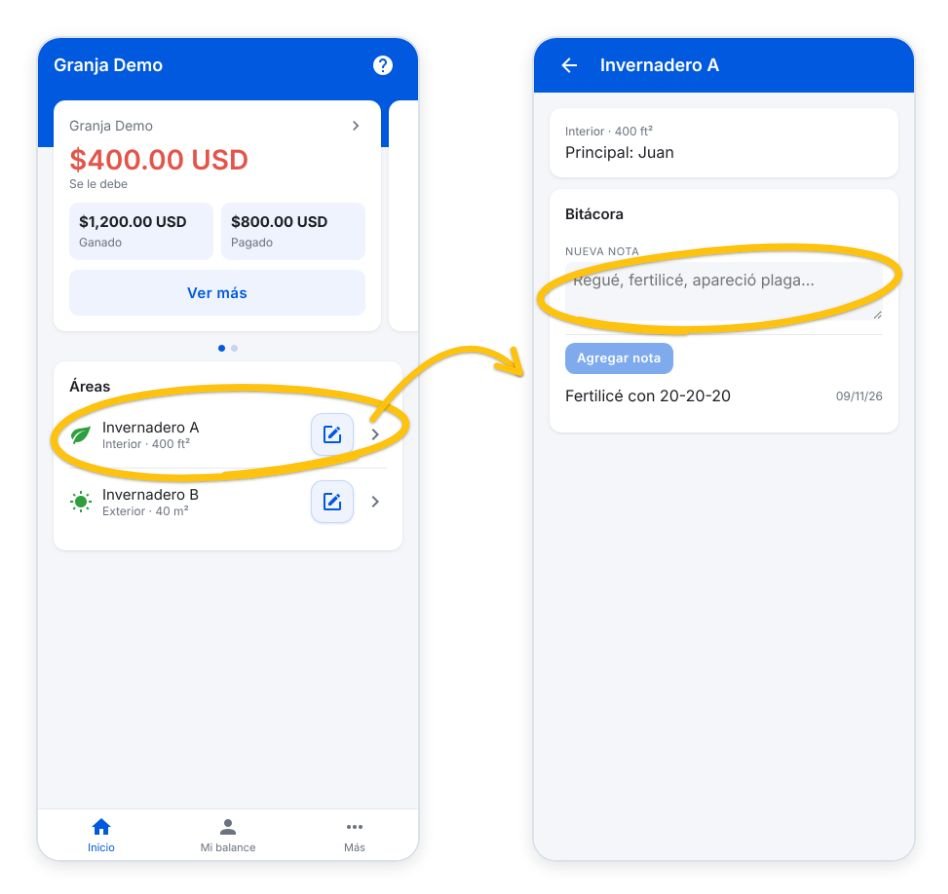
Below is the list of areas, without inventory. Opening an area shows its log, and they can add notes. If you give them more permissions, their screen switches automatically to the partner or administrator view.
Recording entries
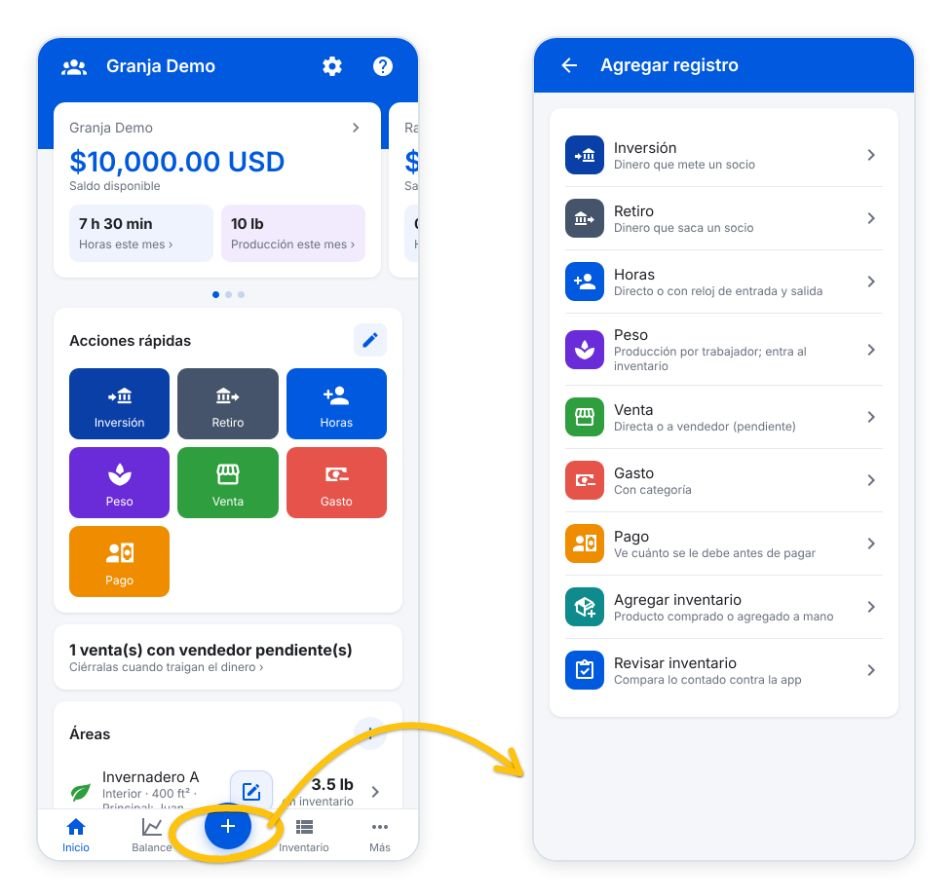
The + button in the menu opens “Agregar registro” (add entry) with every type of entry. Each form has the amount in large type at the top, the details below (worker, area, product, date) and an optional note under “Más detalle”. Tap “Guardar” (save) and the entry goes to Movements.
Hours
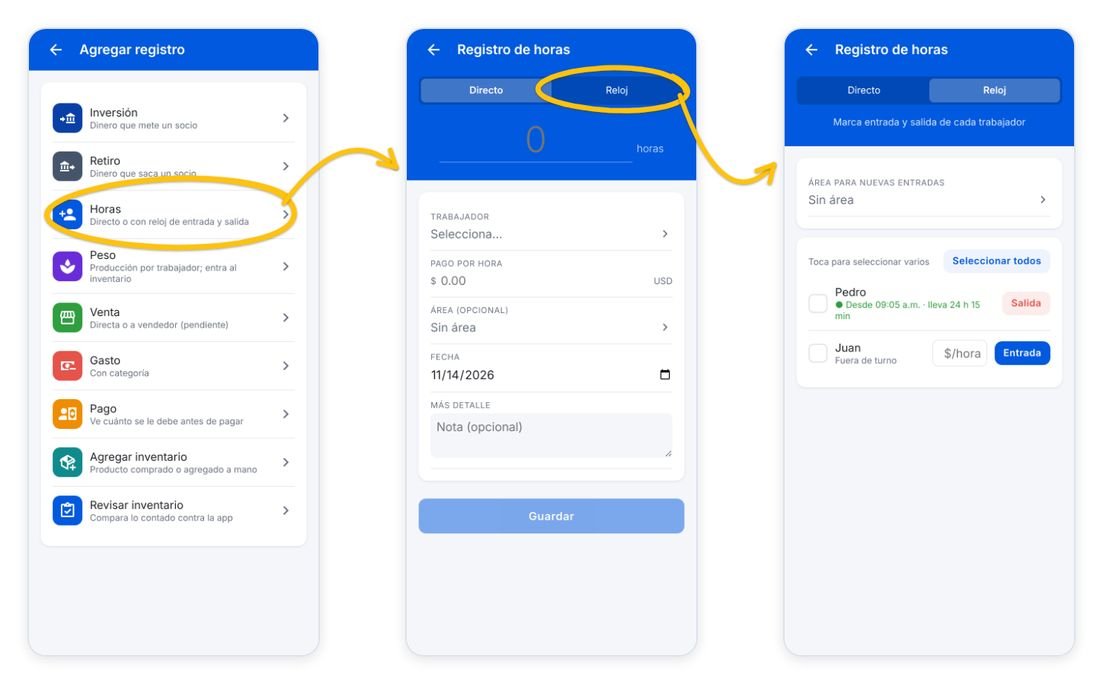
In Direct mode you enter the hours worked, the worker, the hourly pay, the area and the date. In Clock mode you mark each worker’s clock-in and clock-out; you can select several at once or all of them. While someone is on shift you see since when they have been working; when you clock them out you confirm the area, hourly pay, break and a note, and the hours entry is created.
Weight (production)
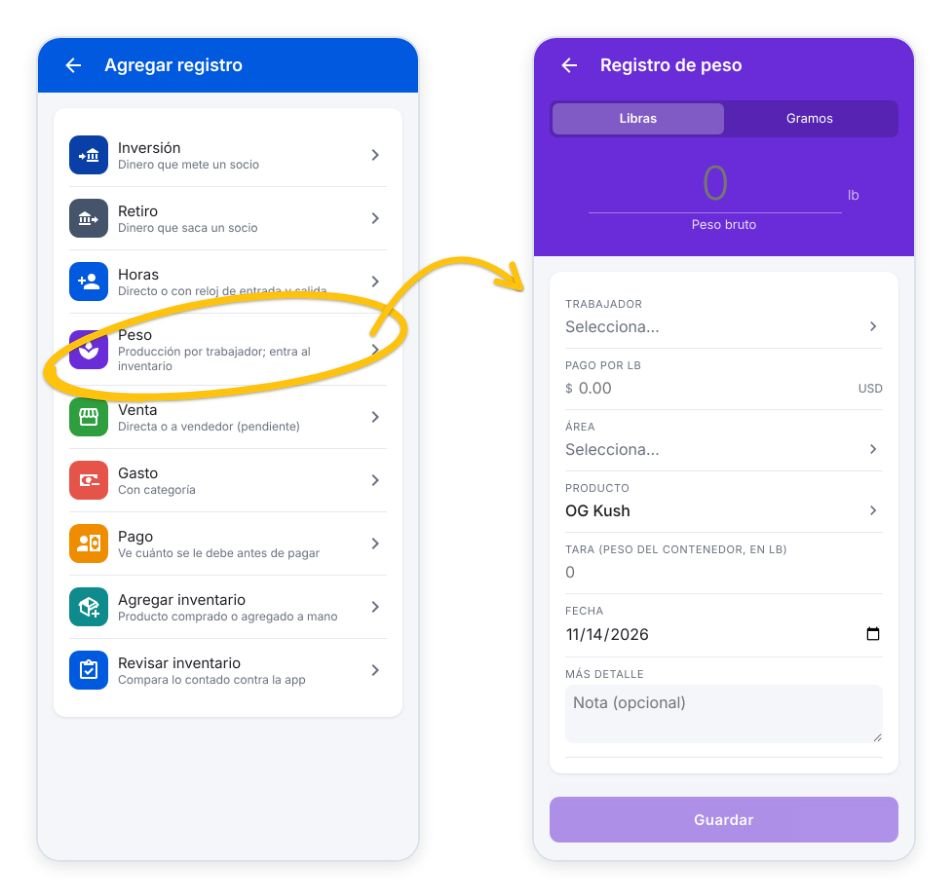
Records what a worker produced. Pick pounds or grams, enter the gross weight, the worker, the pay per unit, the area, the product and the tare (the container weight, which is subtracted). What was produced goes into that area’s inventory.
Sale

Direct sale: enter the total amount collected, the product and how much comes out of each area (you see what is available in each). The client is optional.
To seller: for product handed to a seller who pays later. Enter the agreed amount and choose whether the product leaves inventory when delivered or when the sale is closed. The sale stays pending on Home and Inventory until you close it with “Cerrar” when the seller brings the money.
Expense and worker payment
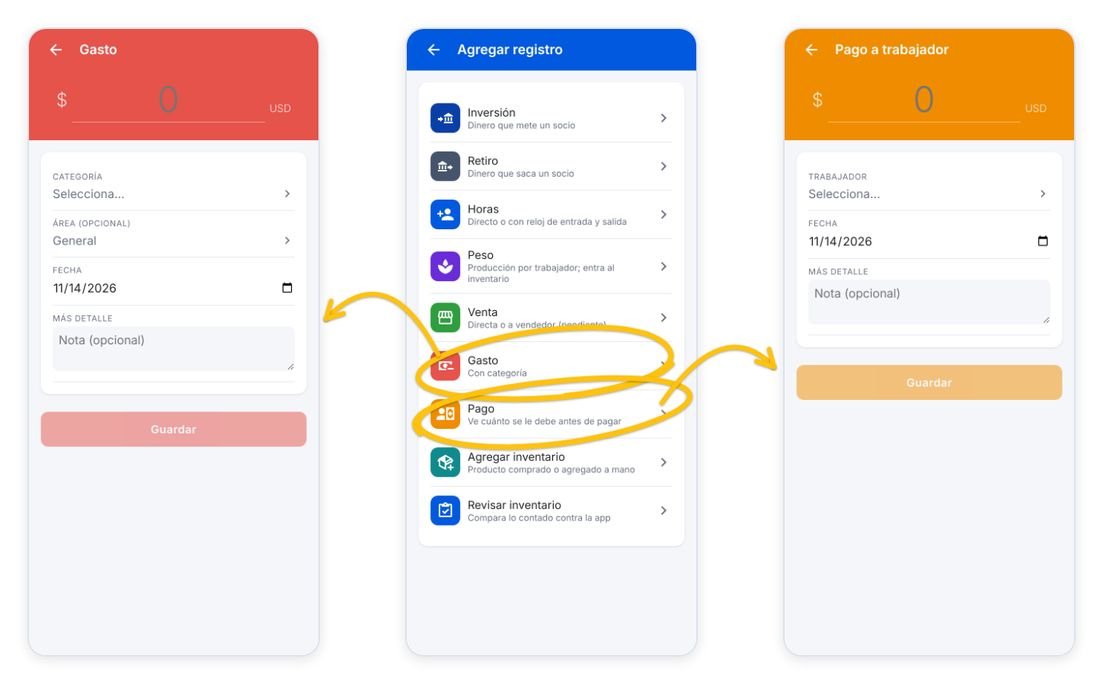
Expense: amount, category (Supplies, Rent, etc.), optional area and date. Payment: money you pay a worker. When you pick the worker you see how much they are owed before paying.
Investment and withdrawal
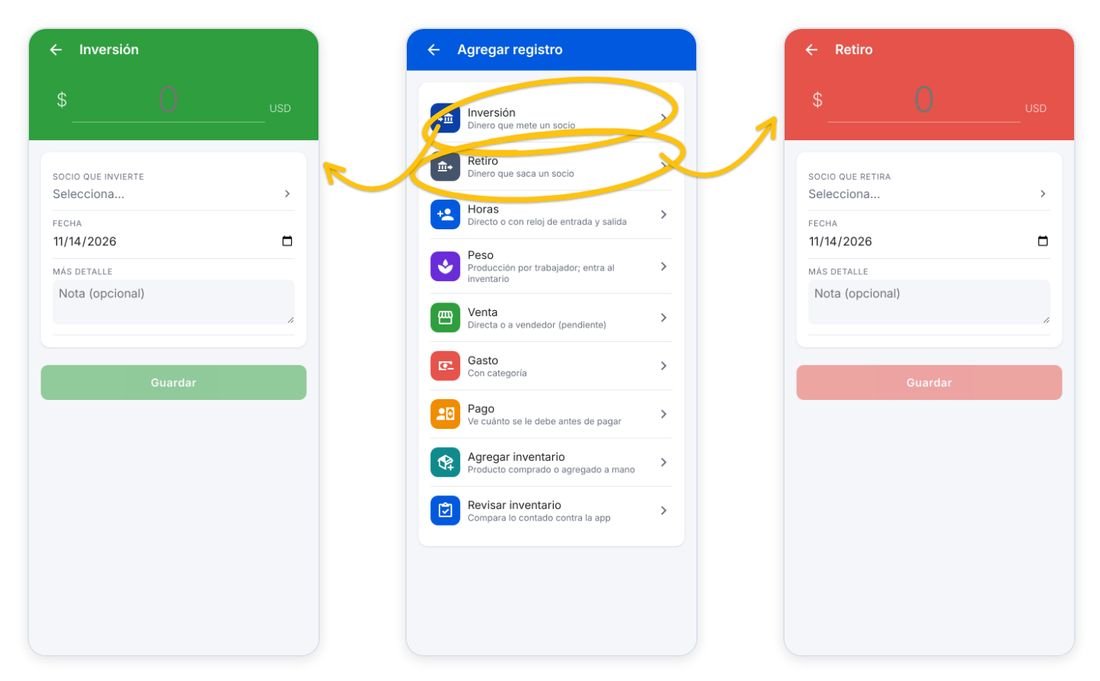
These are two separate buttons. Investment is money a partner puts into the operation; Withdrawal is money a partner takes out. Both change the available cash and that partner’s balance.
Offline
You can record everything without signal. Entries are saved on the phone, balances update right away and a notice at the top shows how many are waiting to be sent. When the signal returns they are sent automatically; you can also force it in More → Sincronizar ahora (sync now).
Balance

Shows the available cash with a chart of money in (partner investment, sales collected) and money out (expenses, worker payments, withdrawals). Swipe the chart sideways to see more. Below is the profit (sales minus expenses minus labor, paid and unpaid), the partners table with what each invested, withdrew and their share of the profit, what each worker is owed and the yield per area. “Ver movimientos” opens the list of entries.
Movements and corrections

Movements lists every entry with filters (Money, Sales, Expenses, Payments, Hours, Weight and Inventory). Tap one to see its detail. People allowed to correct see “Editar” (edit) and “Anular” (void): editing saves the corrected entry and voids the original with the note “Corregido”, so the history is kept. Entries are never deleted.
Inventory
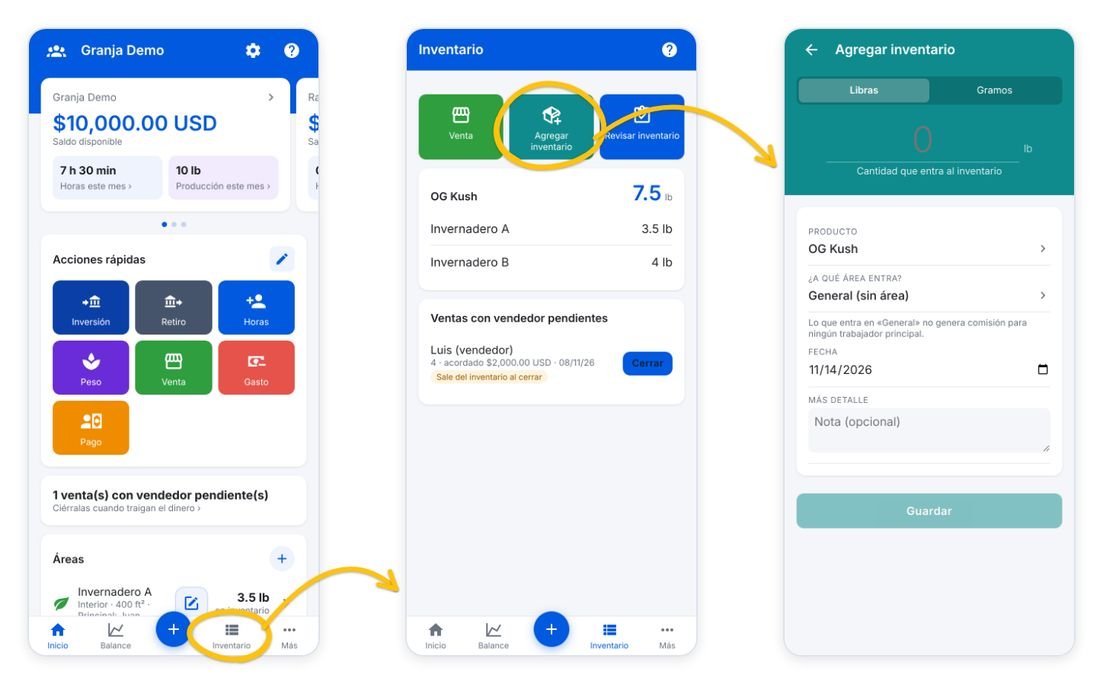
Shows how much of each product there is and in which area. Products at zero are hidden. From here you can sell, add inventory (product bought or added by hand, to an area or to “General”) and review the inventory. Pending seller sales also appear here, with their “Cerrar” (close) button.
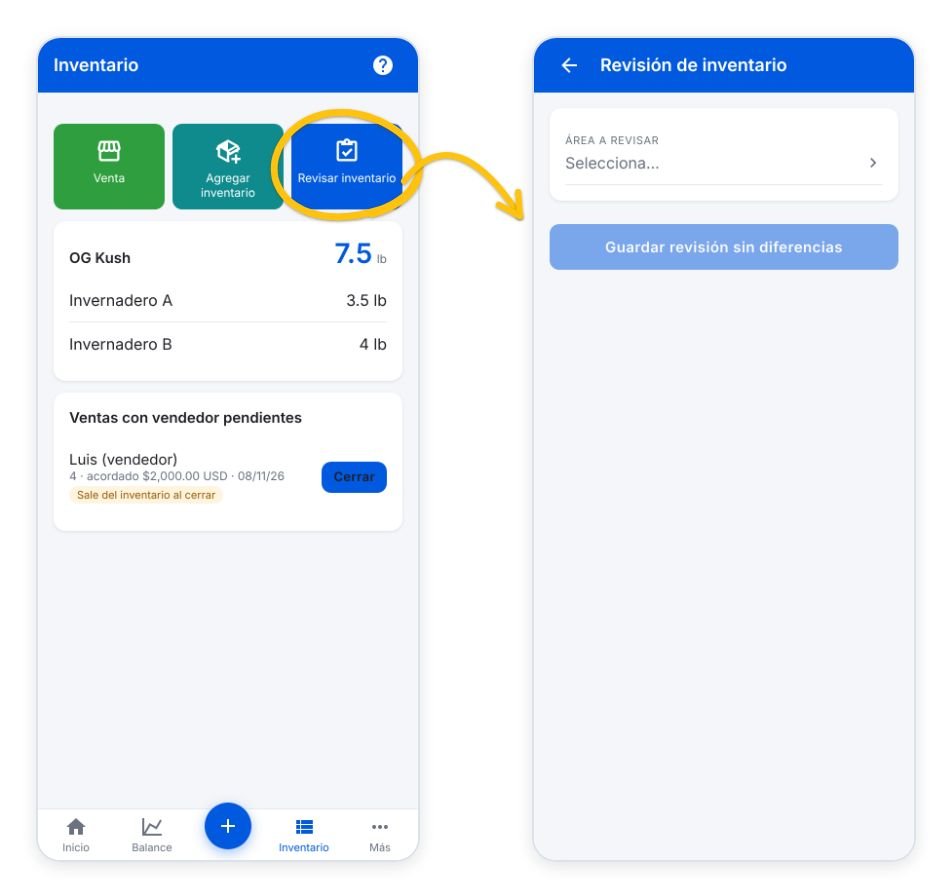
Review inventory: pick an area, enter what you physically counted and the app compares it with its records. If there are no differences you save the review as is; if there are, the adjustment is recorded.
Areas
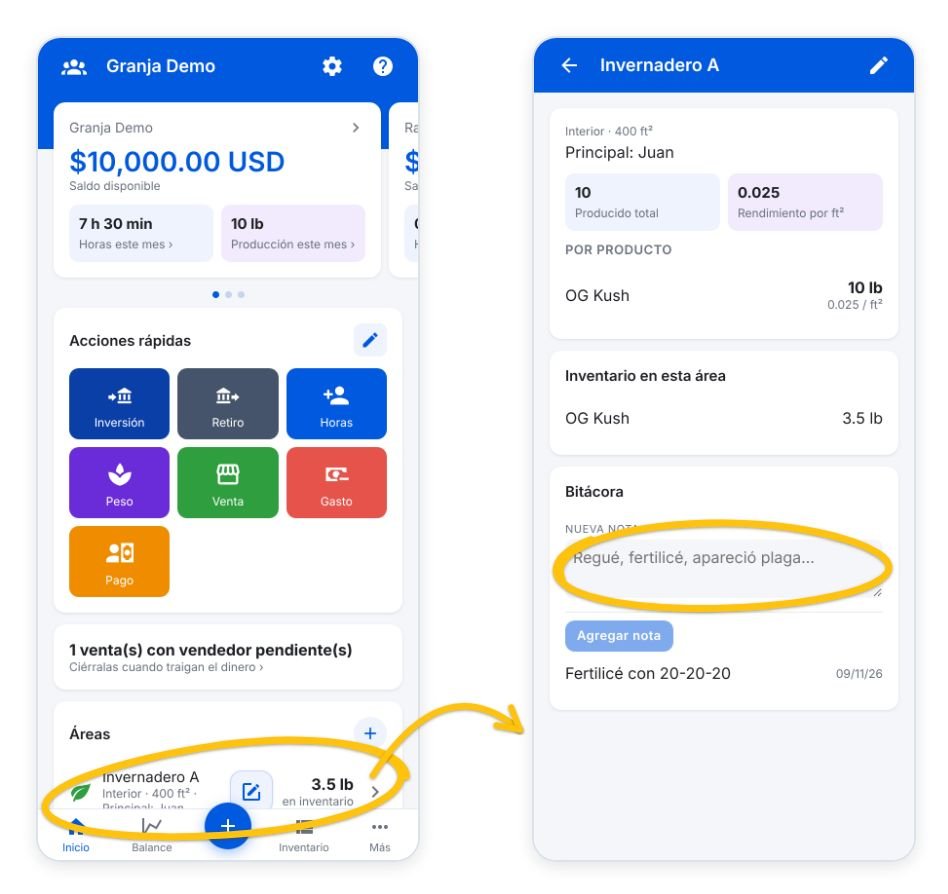
Tapping an area shows its type, size and main worker, total production and yield per size, production by product, its inventory and the log. In the log you write dated notes (watering, fertilizer, pests); they also work offline. The pencil at the top edits the area.
Team
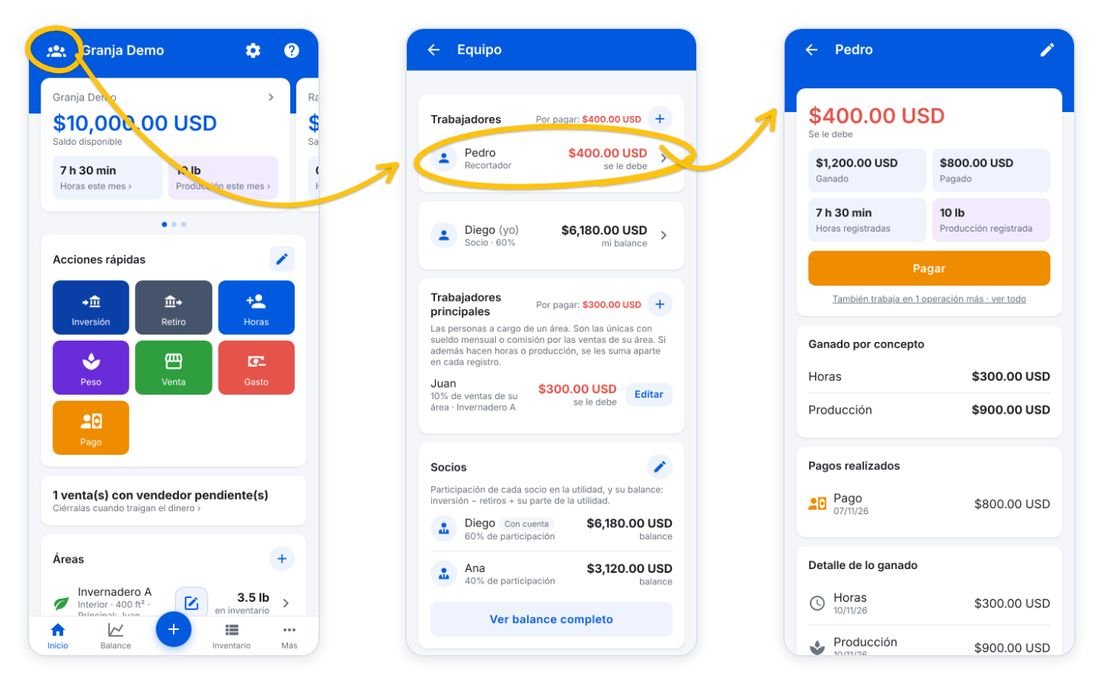
Team brings together the workers (with what they are owed), your own card, the main workers and the partners. With the + you add a new worker, one from another operation or one from the directory. The Partners pencil edits the partnership: percentages are saved with a start date, so each period’s profit is split with the percentage in force at the time.
Tapping a worker shows what they are owed, earned and were paid, their hours and production, the detail by concept and their payments. From there you pay them, edit their name and job title with the pencil, or mark them inactive in that operation.
Directory and profiles

The directory (More → Directorio) lists everyone in your operations: partners, workers, main workers and clients. A person with several roles appears once with all their tags. You can search by name, phone or email, filter by type and add a contact with the + at the top. Tapping someone opens their profile with their full balance in each role.
Settings
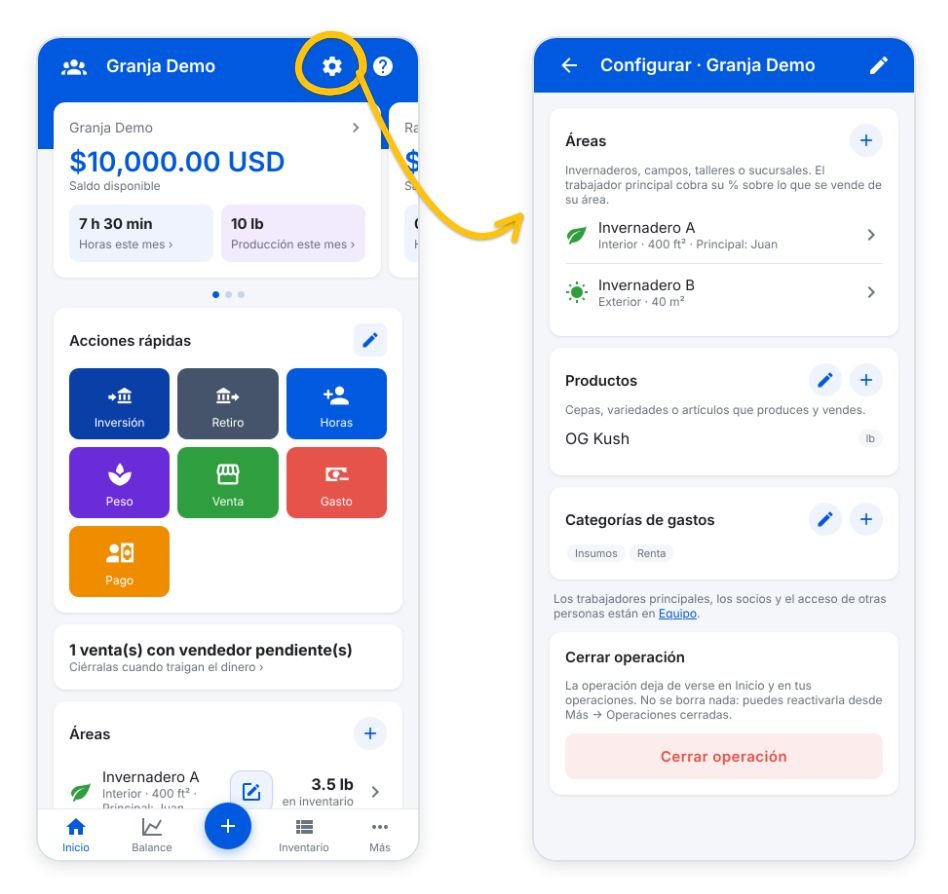
From the gear you set up areas, products and expense categories. The + adds a new one; the pencil enters edit mode to delete products or categories (if a product still has inventory, the app warns you). The pencil in the blue bar renames the operation. At the bottom is “Cerrar operación” (close operation): it stops showing on Home without deleting anything, and you can reactivate or delete it from More → Operaciones cerradas.
More
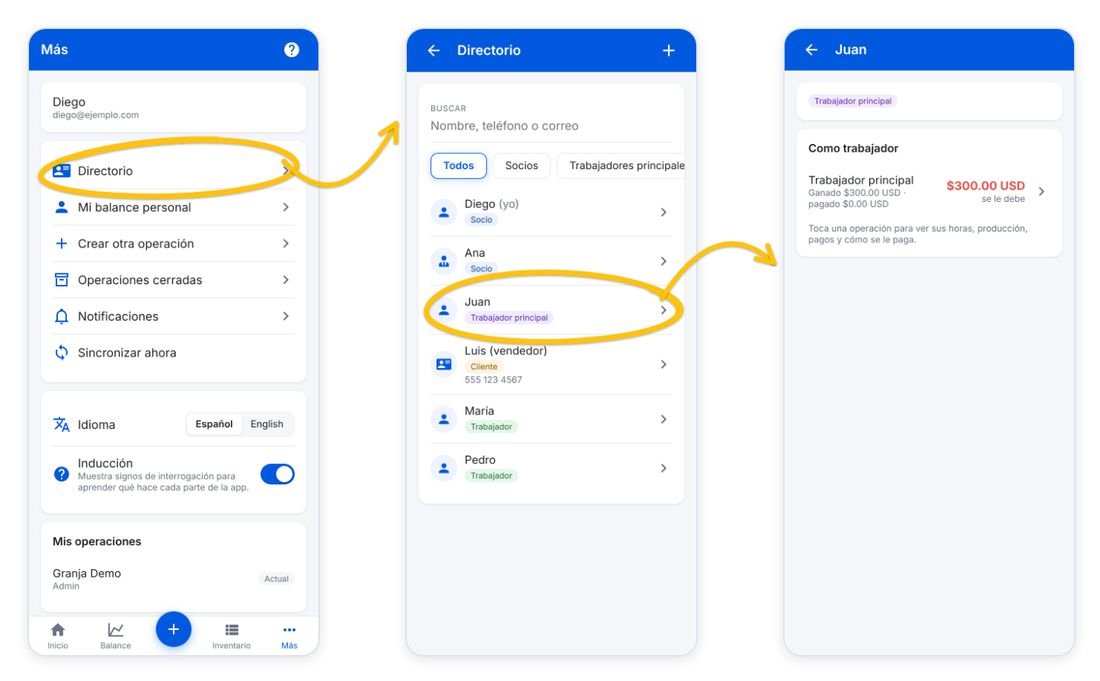
More holds the directory, your personal balance, create another operation, closed operations, this user guide, notifications (with a red badge for unread ones), “Sincronizar ahora” (sync now), the language and the onboarding switch. Below are your operations and the ones where you are a guest (tagged “Compartido” when someone else has access), the sign-out button and the app version.
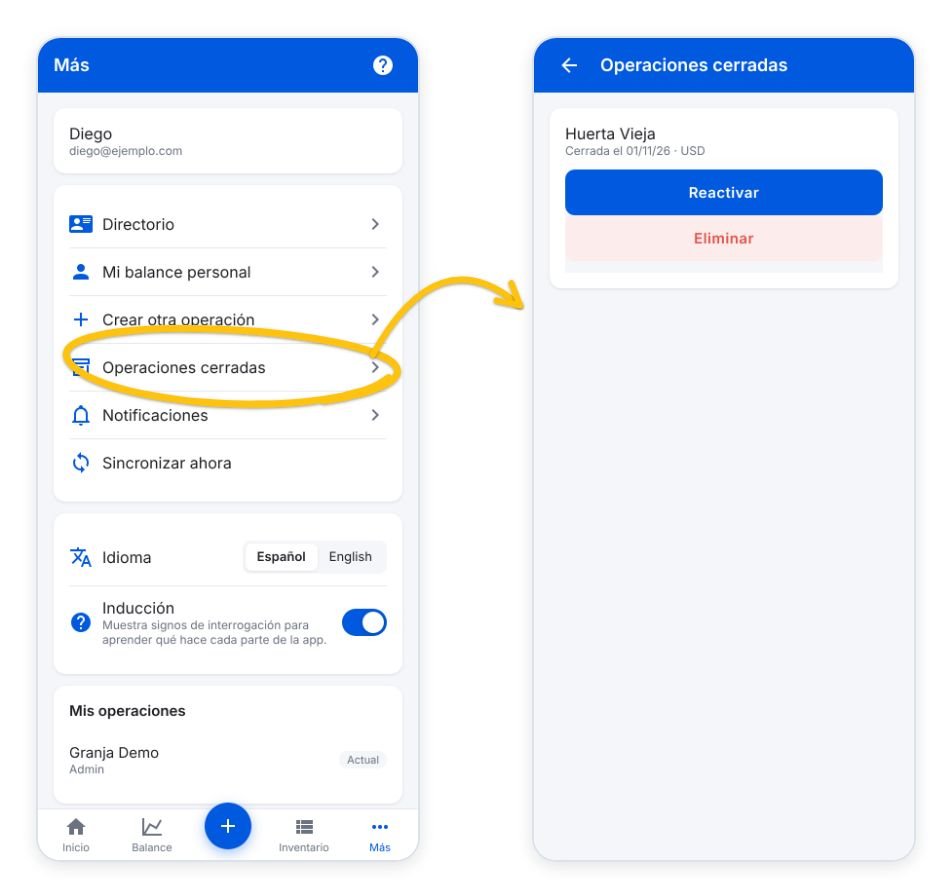
Closed operations: reactivate an operation or delete it forever. To delete it you have to type its name, because it erases all its records.
Onboarding help

On the main screens, the question mark in the blue bar turns on onboarding: yellow question marks appear on each part and tapping one opens a window explaining what it does. “Salir” turns it off. If you no longer need it, switch it off in More → Inducción.
Notifications
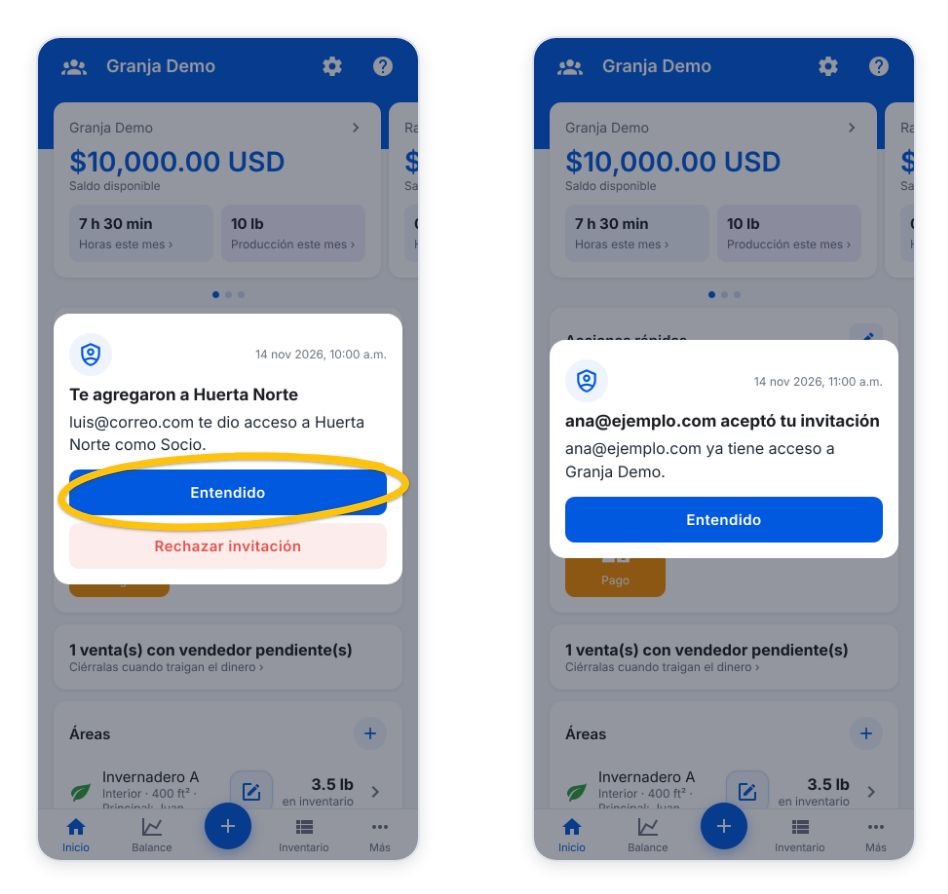
When someone gives you access to an operation, the next time you open Jorna a window shows who invited you and in what role. “Entendido” accepts; “Rechazar invitación” asks you to confirm and removes your access. Whoever invited you gets another window with your answer.
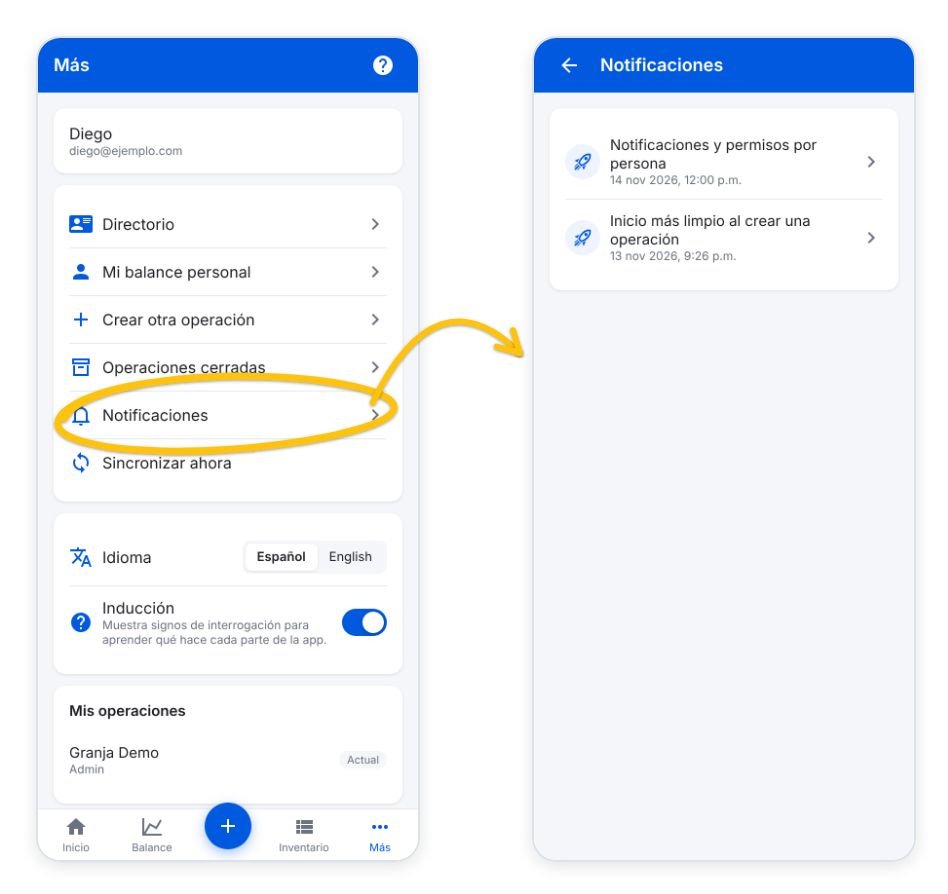
More → Notificaciones keeps the dated history: invitations, answers and the news from each app update. Unread ones are bold with a blue dot and add up to the red number in More. Opening one shows it in a window with “Cerrar” (close) and marks it as read.
People with access and permissions
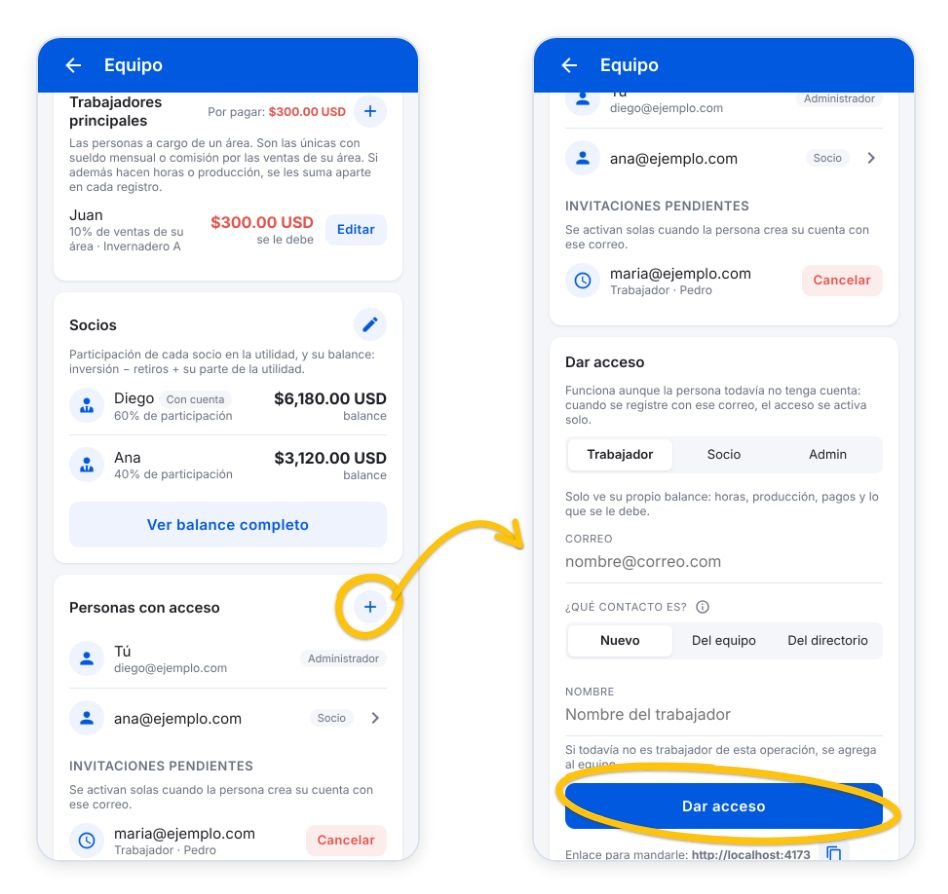
In Team → Personas con acceso (people with access) you see who can open the operation. To invite someone tap the +, choose the type (Worker, Partner or Admin), enter their email and say which contact they are: a new one, one from the team or one from the directory. Tap “Dar acceso” (give access).
- If the person already has an account with that email, they get access right away and will see the invitation notice when they open Jorna.
- If they don’t have an account yet, the invitation stays under “Invitaciones pendientes” and turns on by itself when they sign up with that same email. Send them the app link with the copy button.
- Jorna does not send emails: let them know yourself by WhatsApp or however you prefer.

Each invited person has a small arrow on the right. Tapping it opens their permissions as checkboxes, ticked according to what they have. You can add or remove any of them and tap “Guardar permisos” (save permissions). If the list matches a type, the tag says Worker, Partner or Administrator; otherwise it says “Personalizado” (custom). “Quitar conexión” (remove connection) removes their access to the operation; their records stay.
The permissions are: see their own balance; see their area’s sales; see the area logs; add notes to the log; see all balances, movements and inventory; record entries; correct or void entries; set up areas, products and categories; add workers and edit the partnership; give or remove access; and close, reactivate or delete the operation. Recording, correcting, settings, team, access and operation also need “see all balances”, so it gets ticked automatically. When you give access as a worker, the first four come ticked. Both the app and the database enforce these permissions: if someone lacks a permission, those buttons and screens don’t appear for them and it cannot be saved.
Your own row and the row of the person who created the operation cannot be edited here, so nobody can take control of the operation away from its owner.